
Choose a working structure rather than a decoration style
How do you use a planner to find commitments and understand the next step? Separate timed appointments, tasks without fixed starts, and short notes. Choose a few simple symbols and plan a review of unfinished entries. Elaborate spreads and a new system every week are unnecessary.
A planner is where you retain and review tasks. It need not simultaneously be an emotional journal, financial spreadsheet, and study archive. If mixing them obstructs searching, move long material elsewhere and leave a link or short reference here.
To start a planner from scratch, open a notebook or note you already have and write today’s date. List known appointments with times, then a few actions you want to choose today, plus one line for waiting. In the evening, mark each selected task’s result. Your first working page appears immediately without preparing a month of spreads.
Separate appointments from the action list
An appointment has a specific time and usually other participants. A task requires action but not always a fixed start. Putting everything in an hourly grid falsely suggests every item already has time allocated. Putting everything in one list makes it easy to lose appointments among requests.
On the daily page, reserve space for scheduled events and separate space for chosen actions. For an event, state time, place, and preparation if needed. For a task, use a verb, object, and real deadline only if one exists. ‘Call the service and clarify repair terms’ is clearer than ‘repair’.
The official GTD description separates capture, clarification, organization, and review of commitments. The principle helps a planner: recording is not the same as clarifying. A new line needs a workable form and place, or the notebook becomes an archive of promises that are difficult to select for action.
Set up three simple places
First, incoming notes: everything new that is not yet processed. Second, the current page or spread with near-term commitments. Third, expected replies and postponed decisions. On paper, these can be separate pages; digitally, clearly named sections.
Do not create dozens of categories beforehand. For short notes, one task section with context labels is enough. A new section is needed when the existing structure makes a recurring information type hard to find. If waiting regularly mixes with actions, a separate waiting list solves a specific problem.
State where the main calendar lives. If appointments are already digital, the planner can hold only a daily copy and preparation tasks. Define an update rule: when a time changes, edit the main calendar first, then the working page. Two independent sources quickly diverge.
A filled example: the first workday page
A blank page needs only the date and three labels: ‘Events’, ‘Tasks’, and ‘Waiting’. Below is a compact Tuesday example. First enter notes in the middle column; fill the right column in the evening or after a reply. Add new ideas at the bottom as incoming notes.
The author’s example: Lena has a Tuesday call at 11:00 and a technician visit from 17:00 to 18:00. Between them, she needs to check a contract, buy supplies, and receive a colleague’s layout reply. In events, she records the two timed commitments and preparation for each.
Tasks include ‘read the contract’s payment terms and list questions’ and ‘make a supplies list before shopping’. The layout moves to waiting: ‘colleague sends a version; check the reply Wednesday morning’. Lena does not mark waiting complete merely because she sent a request.
In the evening, she marks the contract check complete and moves shopping to Thursday after clarifying the part’s required size. The original line receives an arrow and new date. This shows that rescheduling relates to missing information. She does not rewrite the page as though the initial plan never existed.
| Section | Entry | Result or continuation |
|---|---|---|
| Events | Call 11:00; technician 17:00–18:00 | Preparation recorded separately |
| Tasks | Read payment terms | Completed; questions saved |
| Tasks | Buy supplies | Move to Thursday after clarifying size |
| Waiting | Colleague’s layout reply | Check Wednesday morning |
| Incoming | New project idea | Do not automatically make it tomorrow’s obligation |
Choose clear symbols
Use an empty square for a task, a mark for a completed action, an arrow and new date for rescheduling, and a separate symbol for cancellation. Start and end times suffice for an appointment. Consistent meaning matters more than the specific symbols.
Do not use one check mark for ‘done’, ‘read’, and ‘decided to postpone’. That makes the state unclear in the evening. If a task is unnecessary, mark cancellation and briefly explain why when it will help a future review. Cancellation is a complete decision rather than hidden incompletion.
Digital statuses can help, but keep them few. If updating a status takes longer than a small task itself, simplify the scheme. A planner should support action rather than create separate administrative work for every line.
Reschedule deliberately rather than rewriting debt
When moving a task, ask whether it is still needed and what prevented completion. Cancel it if obsolete. If information was missing, record a request. If time was missing, find a real window or reduce scope. Rewriting it for tomorrow without changes does not fix the cause.
After repeated identical moves, make a separate decision. The task may be too general, dependent on another person, or insufficiently important. There is no universal number of postponements after which to delete an item. Stop its automatic journey through every page.
Do not turn every idea into daily commitments. Save it separately and choose a review date if it truly matters. Otherwise, the list becomes too long and the planner displays unfinished work instead of helping choose manageable actions.
A daily note and review template
Use: date; scheduled events; available windows; a few selected actions; incoming notes; waiting; outcome and continuation. Choose task count according to duration and load rather than blank lines. A large space on a page does not oblige you to fill it.
- Appointments have exact times and an up-to-date source.
- Tasks are written as actions rather than vague topics.
- Rescheduling includes a new date or return condition.
- Waiting is separate from your own action.
- Completion, postponement, and cancellation use different marks.
- At day-end, one nearest continuation step is clear.
If using recurring digital events, check whether you are editing one instance or the entire series. Google Calendar supports both. This useful technical capability does not remove the need to choose a primary place and update notes carefully.
Review open items weekly
Review unfinished lines from several days, waiting, and upcoming appointments. For each, choose: do, clarify, reschedule, cancel, or continue waiting with a clear check. You need not rewrite everything on a clean spread; open commitments need only remain visible in the current working area.
Also examine recurring causes. If tasks constantly fail to fit, reduce the chosen volume. If requests get lost, improve waiting tracking. If two calendars diverge, establish the primary source. This review changes the process rather than merely tidying the list.
The practical result is simple: in the morning you know what is scheduled, in the evening what happened, and open tasks have explicit continuation.
Sources
Frequently asked questions
Must I fill the planner every day?
No. Use it when commitments arise or need review. A blank page does not mean a missed day if you needed no notes.
Can I combine paper and a digital calendar?
Yes, if the main appointment source and a clear copy-update rule are defined. Tasks can remain on paper while scheduled events stay in the calendar.
What about a task moved all week?
Check relevance, size, and the obstacle. Then change the nearest action, assign a real window, or cancel. Simply rewriting it for tomorrow preserves the same problem.
Turn an idea into action
Was this helpful?
Rate the article and tell us what was missing. Your feedback goes to the Sinqly team and will not be published on the site.

How to Organize the Space Around You
A practical guide to organizing your space: the KonMari method, 5S at home, tidying habits and minimalism. How order affects productivity and mental health.
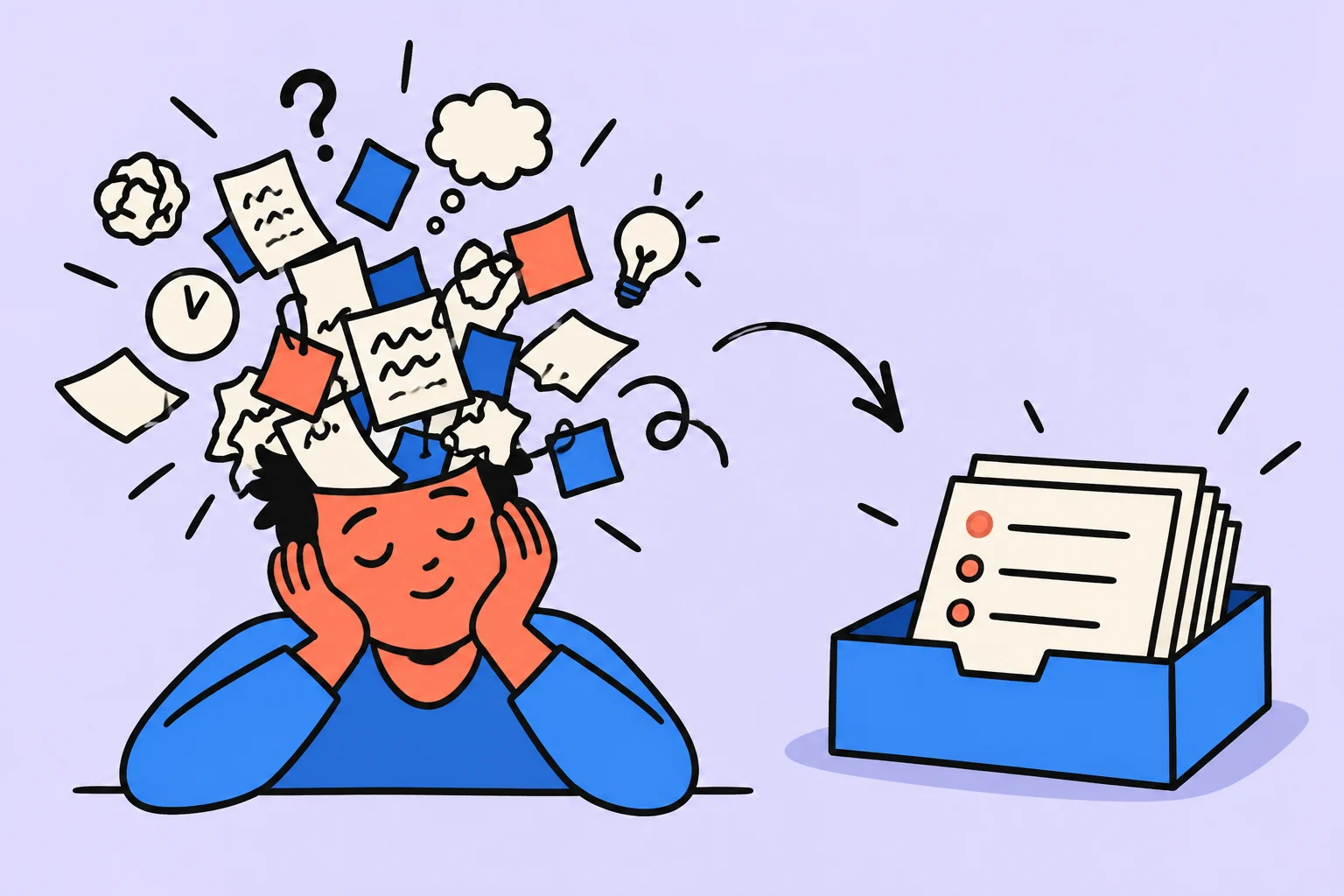
How to clear your head: capture tasks and unfinished decisions
Sort what you are trying to remember: actions, questions, waiting, and ideas. An example of turning rough notes into a short list of next steps.

Digital order: organize your files, email, and apps
A practical guide to digital minimalism: organizing files, managing email, decluttering apps and subscriptions, and bringing order to your digital life.