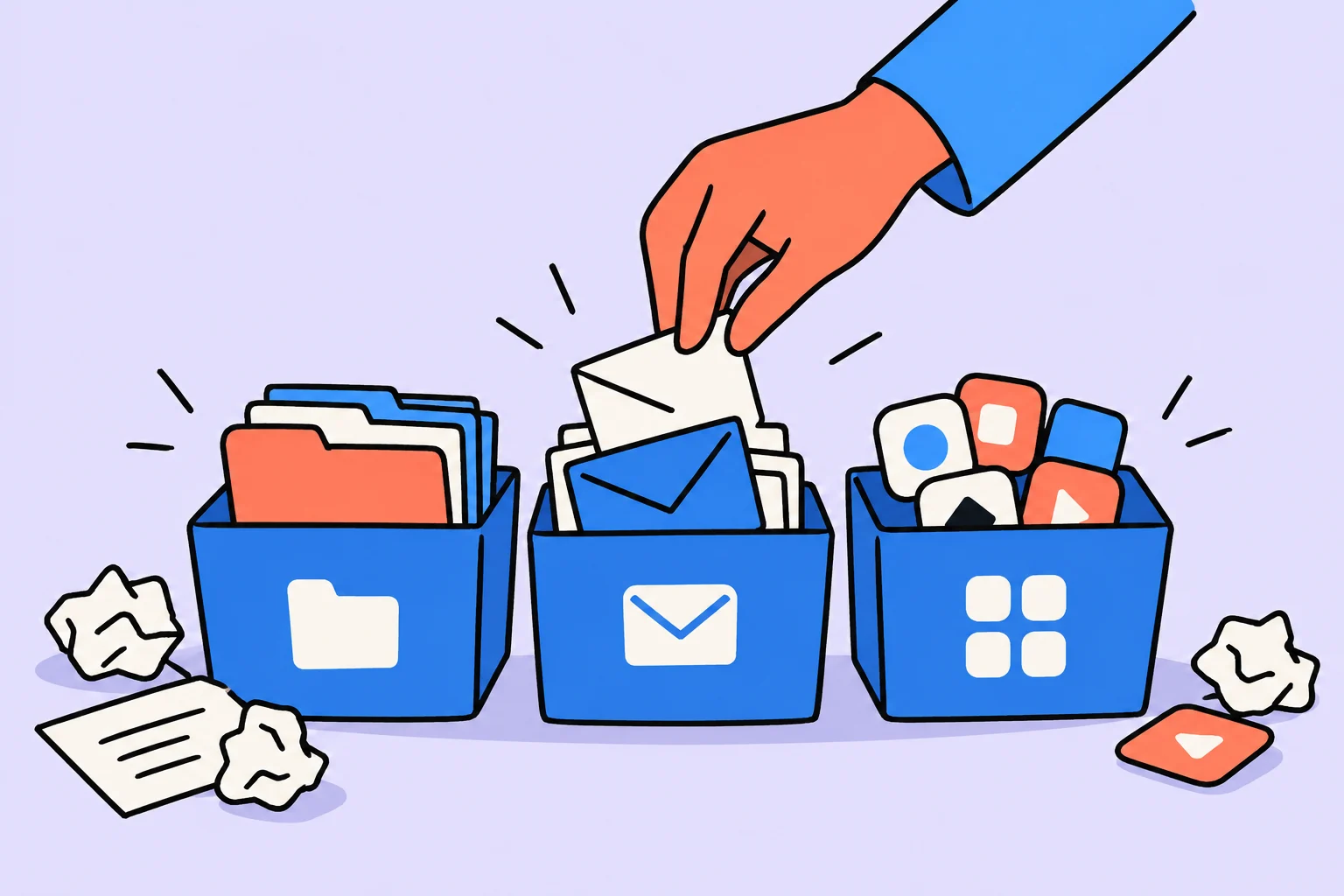
You have 12,847 unread emails, files cover your computer desktop like a carpet, your phone has 127 apps of which you use 15, and subscriptions charge you for services you have forgotten. Digital clutter is an invisible but real source of stress and wasted time. This article gives you a step-by-step plan for bringing digital order.
Why digital order matters
We spend an average of 7 hours a day in front of screens. Our digital space is a second home, and its clutter affects us just like physical chaos. A Microsoft study found that employees spend 1.8 hours a day searching for information. That is 9 hours a week, an entire working day lost to “Where is that file?” and “Which folder did I save it in?”
Digital clutter is even more insidious than physical clutter because it is less visible. You do not see 10,000 cloud files as clearly as a pile of papers on a desk. Yet every time you open a chaotic folder or see 500 unread emails, your brain experiences a small stress response. Accumulated over a day, this becomes fatigue and a sense of lost control.
a day spent searching for information (Microsoft)
apps installed on an average smartphone
spent annually by an average person on unused subscriptions
Email: from 10,000 unread messages to Inbox Zero
Inbox Zero is an email-management method proposed by Merlin Mann. The goal is regular processing of every incoming email, rather than an empty inbox for its own sake. Handle each message in one of five ways: delete, delegate, reply if it takes under 2 minutes, defer longer replies, or archive for reference.
The first step is declaring digital bankruptcy. If you have thousands of unread messages, you will never read them all. Select every email older than 30 days and archive it. If something was truly important, the sender will remind you. It is frightening but freeing.
The second step is unsubscribing. Open your inbox and count how many messages from the last week are newsletters you do not read. Use Unroll.me or unsubscribe manually. The goal is to keep only messages from people and critical notifications.
The third step is regular processing. Check email 2–3 times a day at fixed times, such as 9:00, 13:00, and 17:00. Process each message immediately: reply, delegate, schedule, or archive. Do not leave messages read but unprocessed; that is the worst category.
Three folders are enough: Inbox for unprocessed messages, Waiting for replies you expect, and Archive for processed messages. Other folders add unnecessary complexity. Use built-in search rather than a folder hierarchy to find things.
Files: a structure that works
File organization begins with one storage system. Choose one primary source, such as Google Drive, iCloud, Dropbox, or a local drive, instead of three clouds, two external disks, and something on the desktop. Everything else should link to it.
The folder structure should be simple and intuitive. Here is a suggested hierarchy for personal files:
- Documents : passports, contracts, certificates, medical records
- Finance : tax returns, statements, receipts
- Work : by project or client
- Study : by course or topic
- Photos : by year and event
- Projects : personal projects and hobbies
Use year-month-name for filenames, such as “2026-02-Rental-agreement.pdf” or “2026-03-Q1-report.xlsx.” This gives automatic date sorting and quick searching.
Your desktop is a temporary area rather than storage. Keep no more than 5–7 files you are currently working on. Sort them once a week, moving files to the right folders or deleting them.
Apps: decluttering your phone
An average user installs 80–130 apps but regularly uses 15–20. The rest take up space, distract with notifications, and create visual noise. Each unnecessary app is another icon competing for attention and a background process consuming battery.
A phone-decluttering plan:
- Audit : open settings and view apps sorted by last-use date. Anything unopened for more than a month is a candidate for removal.
- Delete : remove duplicate apps, such as three note apps or two calendars, and those that offer no benefit, such as games you are hooked on but no longer enjoy.
- Organize : arrange remaining apps by category across 2–3 screens. Put only the essentials on the main screen: messenger, calendar, notes, and Sinqly. Use the second screen for useful but noncritical apps, and the third for everything else.
- Notifications : disable notifications for every app except messaging, phone, and calendar. Access everything else when you choose to open the app.
Subscriptions: where money leaks away
The average Russian spends 3,000–5,000 rubles a month on subscriptions: streaming, cloud storage, VPNs, apps, and online services. Some are useful and used. Others are forgotten subscriptions that keep charging automatically.
Audit subscriptions. Open your bank statements for the last 3 months and list every recurring charge. For each one, ask: “Have I used this in the last month?” and “Is it worth the money?” Cancel anything that fails either test.
Tip: instead of many specialized apps, look for platforms that combine several functions.
A free trial is a marketing technique. You subscribe, forget to cancel, and charges begin a month later. The solution is to set a calendar reminder 2 days before every trial ends.
Cloud storage: order in the cloud
If you use Google Drive, iCloud, or Dropbox, look inside right now. You will probably find 5-year-old files, duplicates, and folders called things like “New folder (3).” Cloud storage tends to grow unchecked because there is plenty of space and you will sort it out later.
Start by removing duplicates using tools such as Duplicate Cleaner or the cloud service's built-in features. Then apply the same folder structure as for local files. Configure device synchronization so that files are available everywhere without cluttering local drives.
Browser tabs and bookmarks
50 open tabs create visual noise and strain both your computer's memory and your own. Each open tab is an unfinished intention: something you want to read, need to look at, or think might be useful.
The solution is a maximum of 5–7 tabs at once. Save anything for later in a bookmark manager such as Pocket or Raindrop.io, or simply close it. If you truly need the information, you can find it again with a 30-second search. Fear of losing information is an illusion: 90% of saved links are never reopened.
Browser bookmarks also need order. Create 5–7 topic folders and review them monthly. Delete saved links older than six months: if you have not needed them in 6 months, you never will.
Sinqly as a single center for digital life
One cause of digital chaos is being scattered across dozens of apps: habits in one place, goals in another, notes in a third, and reflection in a fourth. Each switch loses context and fragments attention.
A 30-day digital-decluttering plan
- Week 1: Email : archive old messages, unsubscribe from newsletters, configure filters, and switch to checking 3 times a day.
- Week 2: Files : create a folder structure, move desktop files, delete duplicates, and clean the cloud.
- Week 3: Phone : delete unused apps, organize screens, configure notifications, and audit subscriptions.
- Week 4: Maintenance : introduce a weekly 15-minute audit and a digital-cleaning habit in the Sinqly tracker.
Conclusion: digital order is freedom
Digital order reduces cognitive load, rather than demanding perfection or perfectly sorted folders. When you know where to find a file, are not drowning in notifications, and do not pay for forgotten subscriptions, your mind has room for important things: ideas, decisions, and creativity.
Start with the most painful area. If it is email, process your email. If it is your phone, declutter it. If it is files, organize them. Take one step and one week at a time. After a month, your digital space will work for you instead of against you.
Turn an idea into action
Was this helpful?
Rate the article and tell us what was missing. Your feedback goes to the Sinqly team and will not be published on the site.
Bullet Journal: quick notes and deliberate task migration without decoration
A minimal Bullet Journal: tasks, events, notes and deliberate migration. A monthly review example without decorative requirements.
Digital detox: a complete guide
A complete guide to digital detox. Signs of information overload, dopamine dependence, weekend and week-long plans, and a family detox.

How to Organize the Space Around You
A practical guide to organizing your space: the KonMari method, 5S at home, tidying habits and minimalism. How order affects productivity and mental health.