Where to start
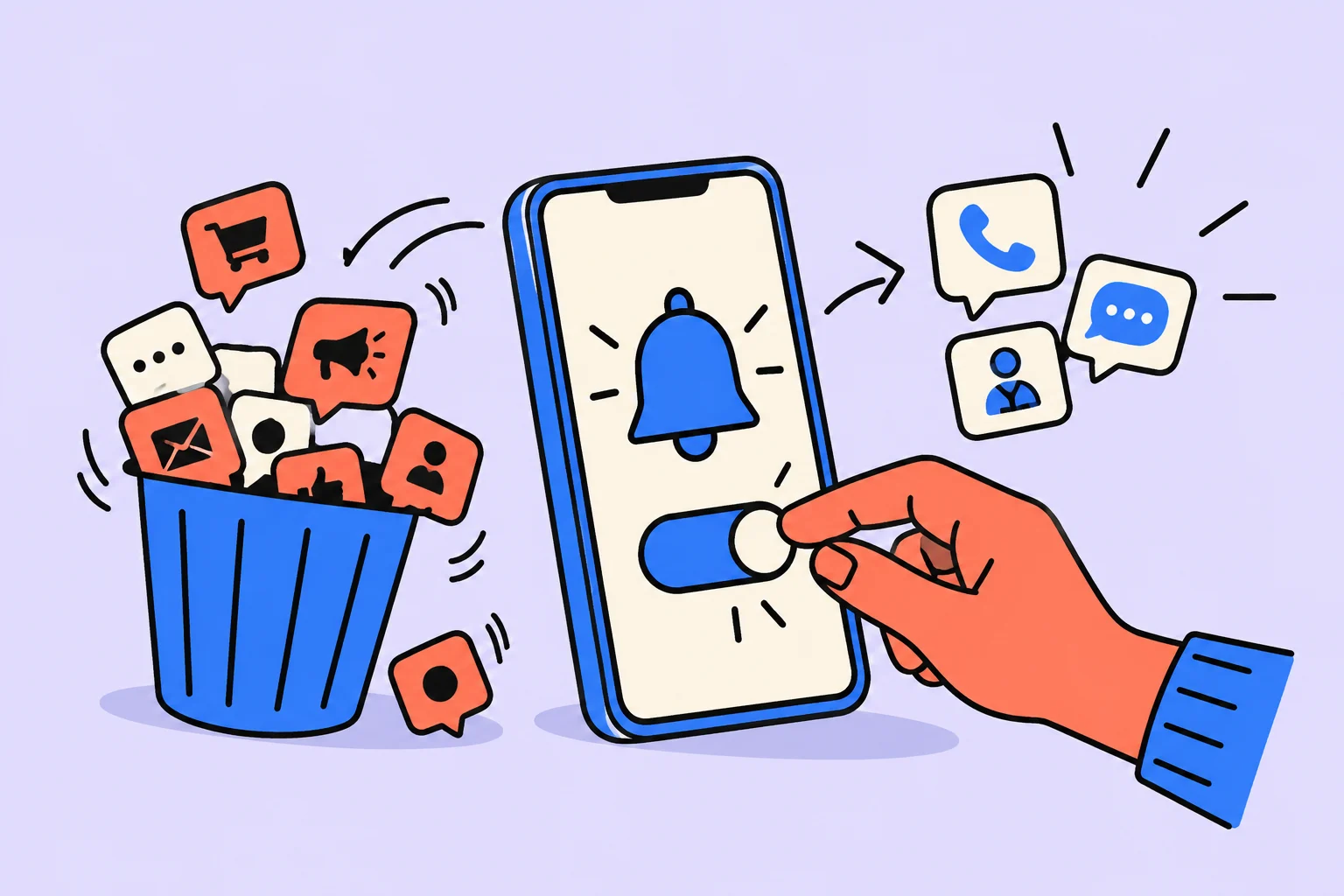
Turning off unnecessary notifications need not make your phone completely unreachable. Separate important contact from optional signals first, then change individual app settings. The result should be a clear arrangement: necessary calls arrive, while advertising and non-urgent messages do not interrupt the chosen work window.
What should you leave enabled first?
Before disabling notifications, preserve necessary calls and critical alerts, then identify apps with optional signals. List which messages actually require attention now. These could be calls from loved ones, an agreed urgent channel or a signal about an important event. Everything else does not become urgent merely because the phone makes a sound. If colleagues expect a quick reply, agree on working arrangements first rather than disappearing without warning.
Choose notification permission, sound and screen display separately. Sometimes leaving a silent message in the notification center is enough; sometimes an app should send no advertising at all. Do not disable system or emergency alerts at random to achieve complete silence: they serve a different purpose.
How do you disable notifications on Android?
On Android, settings are usually available through notifications and app notifications; names and categories depend on the device. Google Help describes a route through notification settings and the app list. On Android, menu labels, message categories and available features depend on the manufacturer and system version. If an app has separate categories, keep the needed one and remove advertising; otherwise, you must choose for the whole app.
You can start with a recently received notification: see which app sent it and open its notification controls. This avoids guessing from a long list of installed programs. After changing settings, check that the necessary message delivery method remains; silence does not prove that a message stopped arriving.
Working through an example
The following situation is invented for illustration; it is neither a user story nor a measurement of product effectiveness. Denis receives urgent family calls, but store marketing notifications interrupt his estimate calculations. He keeps calls enabled, disables advertising, silences the messenger and sets a checking time. After configuration, a colleague sends a test message: it is saved without interrupting work.
Denis has three distinct outcomes: family can call, work messages are not lost and advertising does not appear. He checks each separately after changing settings. Silence does not prove advertising is disabled; a missing message may mean permission was removed completely. If a colleague uses another app, repeat the test there. This matters more than enabling the strictest mode: the goal is necessary contact at clear times, rather than an unreachable device.
| Source | Decision | Check |
|---|---|---|
| Family call | Keep enabled | A test call |
| Work chat | Silent during the work window | Check after the window |
| Store advertising | Disable | Check the app settings |
How do you disable notifications on iPhone?
On iPhone, open notification settings and choose an app, then adjust permission, sound and display to your goal. Open notification settings, choose the app and check permission, sound and display options. Apple Help describes these settings, but individual options’ appearance and names depend on the iOS version and app. For a recurring mode, consider available Focus settings after checking exceptions first.
Distinguish system permission from settings inside the service. Disabling a push signal does not necessarily cancel email, subscription messages or entries within the app. If advertising arrives through several channels, check each separately. Do not enter passwords on a third-party page promising to disable every notification in one action.
How do you check whether the settings fit?
Ask for a test call and message, then check which necessary notifications remain after the work window. In Stothart and colleagues’ study, notifications interfered with a laboratory attention task even without active phone use. This supports closer attention to signals, but does not estimate how many minutes or how much money you lost. Test your own arrangement in a suitable work situation.
After configuration, ask someone to send a test message and make the necessary call. Then complete one work window and see what was missed. If an important contact disappeared, correct the exceptions. If advertising sounds remain, identify the source. Settings can be changed gradually without breaking every communication route in one evening.
Checking the decision in your own situation
| Test | Expected result | If something else happens |
|---|---|---|
| Family call | The phone rings | Check exceptions and permissions |
| Colleague’s message | Saved silently | Clarify the app and category |
| Store advertising | Does not appear | Check separate channels |
| End of the window | Necessary messages are available | Schedule a review time |
Start with one app that most often sends optional signals. Decide whether its notifications are needed at all or whether removing sound is enough. Test the result with a message, then protect one work window. Configure the next app after understanding the first change’s consequences.
Sources
Turn an idea into action
Was this helpful?
Rate the article and tell us what was missing. Your feedback goes to the Sinqly team and will not be published on the site.

Bullet Journal: quick notes and deliberate task migration without decoration
A minimal Bullet Journal: tasks, events, notes and deliberate migration. A monthly review example without decorative requirements.
Time sinks: find unnecessary actions without total surveillance
Notice a recurring delay, distinguish it from rest and test one process change. A worked example of finding work documents.

How to leave a note for returning to an interrupted task
What to record before a forced switch: where you stopped and what to do next. A complete note for an unfinished report and a process for returning.