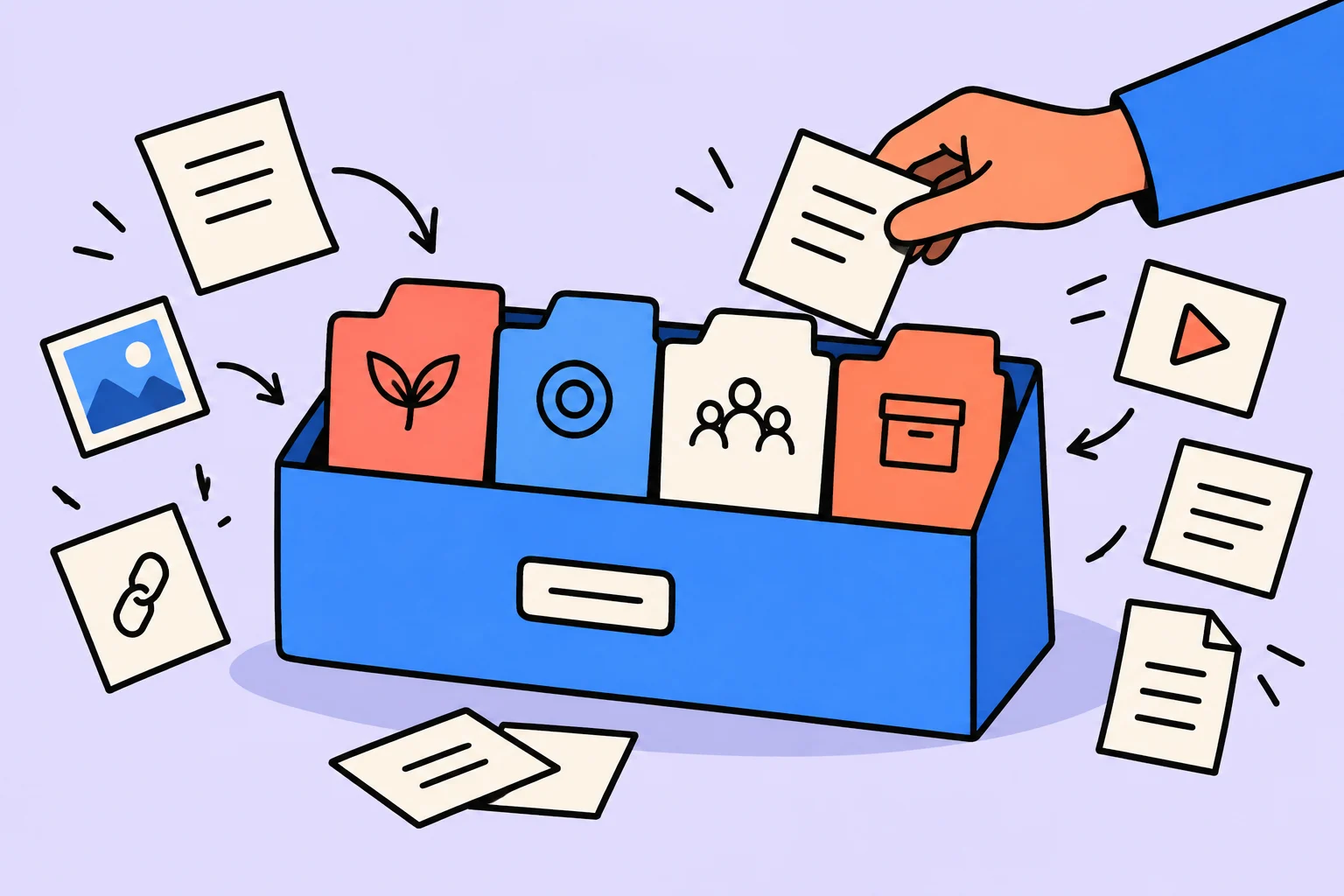
How PARA works
PARA sorts notes, files, and links into four categories: current projects, ongoing areas of responsibility, topic resources, and archives. A material’s place depends on its current use. An active work brief belongs to a project, recurring rules to an area, a learning link to resources, and finished work to archives.
Start with one small folder. Choose a work result, find related materials, and determine each category. You do not need to move every file to a new app: a list of names and source-document links is enough for the first trial.
Tiago Forte proposed PARA: Projects, Areas, Resources, Archives. The original source presents a practical model for organizing information by current applicability. It does not prescribe a universal work schedule or guarantee time savings.
Four categories: project, area, resource, and archive
- Projects — active work with a specific final result. For example, prepare and obtain approval for a new-client guide. Project materials support that particular result.
- Areas — ongoing responsibilities, such as client support. One approved guide completes a project but does not end client work.
- Resources — interests, reference materials, and learning. For example, a collection of clear-explanation techniques. Interest in a topic does not itself mean a commitment to a specific result.
- Archives — inactive material from the other three categories: completed or paused projects, former responsibilities, and topics no longer current. Archives preserve the option to return to information.
The main boundary separates a final result from an ongoing responsibility. ‘Obtain approval for a guide’ can finish. ‘Support clients’ continues afterward. For a project, ask what counts as done; for an area, ask what needs regular maintenance.
The category concerns current use rather than file format. A video can be a learning resource or source material for an active project. A folder named ‘Videos’ does not show that distinction.
Six materials reviewed: Projects, Areas, Resources, Archives
Take an educational example: you are preparing a new-client guide. The project ends when the responsible colleague approves the final document. Client support remains your ongoing responsibility. One folder contains guide materials, work rules, learning links, and results of previous work.
The guide brief belongs to Projects because it serves a specific result: an approved document. Client-reply rules belong to Areas because they support ongoing responsibility and remain useful afterward. A learning link without current application belongs to Resources; last year’s accepted guide belongs to Archives. Current use determines the decision rather than name or format.
| Material | Category | Why here | When to archive |
|---|---|---|---|
| Brief for the new guide | Projects — ‘Guide approved’ | Defines the final result of active work. | When the guide is approved or the project paused, if the brief no longer supports active work. |
| Client-reply rules | Areas — ‘Client support’ | Used regularly, independently of an individual guide. | When replaced or no longer your responsibility; keep the current version in the area. |
| Link to a lesson on clear instructions | Resources — ‘Clear instructions’ | Useful for learning but not yet chosen for the current guide. | When the topic loses relevance. If the project needs the lesson, link from the project. |
| Last year’s accepted guide | Archives — ‘Previous guide’ | Work is finished; the document is retained for possible reference. | Already archived. If needed as an example, link it to the active project. |
| Idea for a future guide series | Resources — ‘Client material ideas’ | There is interest but no decision to start or specific active outcome. | When no longer interesting. If starting, define a specific project. |
| Document-checking checklist | Areas — ‘Client support’ | Needed for different documents, including the current guide. | When replaced or no longer used; keep a project link to the current version. |
One material may help several projects. Here we leave the shared checklist in its responsibility area and link from the guide folder. This is an editorial way to avoid diverging copies rather than an additional mandatory PARA category.
Decision tree: where disputed material belongs
- Needed for an active result?
If the material helps achieve a specific result of started work, put it in Projects. A shared current document may stay in its primary place with a project link.
- Supports an ongoing responsibility?
If the material serves a regular duty continuing after an individual result is delivered, choose Areas.
- Is the topic still interesting?
If there is no current project or ongoing commitment but the material supports interest, reference, or learning, choose Resources.
- Has use become inactive?
If a former project, duty, or interest is inactive but the information is worth retaining, choose Archives.
If the first question is difficult, name the result without ‘work on’. ‘Work on client materials’ is too broad. ‘Guide approved’ supplies a completion boundary. If you have not decided to start, an idea entry can remain a resource.
Archiving and deletion are different decisions. Archive means material does not participate in current work. An unnecessary copy can be deleted separately; retain mandatory documents according to your organization’s rules.
Sort one folder without moving every file
- Choose one small work folder. Leave the rest of storage in place for now.
- Record the active result and completion condition. In our example: ‘Guide approved by the responsible colleague’.
- Create four sections in an ordinary document or four folders within the chosen area: Projects, Areas, Resources, Archives.
- Use the decision tree for each material. Record its name, category, and short reason. If moving is inconvenient, link to the source file.
- Leave shared rules and templates in one primary place. Add links to required materials from the active project.
- Open the project section and check that the brief and other materials for the nearest step are available. Record the action separately.
- Schedule a material review after project completion or suspension. Review categories when relevance changes.
Our example’s next action is ‘Send the draft guide to the colleague for approval’. Record it on paper, in a familiar task tool, or as a task if you already use Sinqly. Files can remain in their storage: action lists and material categories play different roles.
The trial ends when every material in the selected folder has a place and a clear reason for that decision. You do not need to build a perfect structure for your entire life first.
What happens to materials after project completion
After guide approval, do not archive everything encountered during the project. Separate finished-work documents from materials still in use. The brief and approval history can become the project archive; the current guide can belong to ‘Client support’; a general learning link remains a resource.
- Active work
Projects contains the brief, draft, and comments for the current outcome, with links to shared rules and checklist.
- Result accepted
Check the completion condition: the responsible colleague approved the document. Treat new changes as new active work if needed.
- Retain current material
Put the current guide in Areas if used for client support. Leave general learning material in Resources.
- Close project history
Move the inactive brief, finished discussions, and previous versions to Archives. Retain a clear project name and completion note.
- Return when needed
When new work begins, use relevant archived material as examples or inputs. The entire history need not become active.
The same principle applies when pausing a project: inactive work materials may move to archives. Leave a short note about where you stopped and the condition for returning. This is a practical addition to the example rather than a promise of automatic resumption.
Method boundaries and further reading
PARA addresses information’s location and current role. Note quality, next-action selection, and cleaning the whole digital environment need other decisions. Test the method on your materials: if a category is understandable only from its folder name, add the reason for choosing it.
- For a general review of files, email, and apps: https://sinqly.ru/blog/tsifrovoy-poryadok
- For saving work information so it can later be used: https://sinqly.ru/blog/lichnaya-baza-znaniy-dlya-raboty
- For order on your desk and in physical space: https://sinqly.ru/blog/kak-organizovat-prostranstvo
- Other work-organization approaches: https://sinqly.ru/topics/produktivnost
Sources
Frequently asked questions
How does a project differ from a responsibility area in PARA?
A project has a specific final result, such as an approved guide. An area needs ongoing attention: client support continues after the guide is delivered. Sort materials by their current role.
Must I move all notes into one app?
One folder and a four-section list suffice for the first trial. Files can stay in place with links recorded. PARA does not depend on one app.
Where should a new idea go?
If it is currently interesting but you have not started work toward a specific outcome, keep it in Resources. When you decide to start and define the result, create an active project and connect the needed materials.
Should I archive the entire completed project?
Inactive project history can go to Archives. Keep material still supporting duties or learning in Areas or Resources. Archiving does not mean deletion.
Does PARA replace a task list?
PARA sorts information. Determine next actions separately: ‘Draft guide’ belongs to the project, while ‘Send the draft for approval’ belongs in the task list.
Turn an idea into action
Was this helpful?
Rate the article and tell us what was missing. Your feedback goes to the Sinqly team and will not be published on the site.
The 1-3-5 method for planning your day
The 1-3-5 method: a simple daily planning system. 1 main task, 3 medium tasks, 5 small tasks. How to use it, examples, and integration with trackers and AI planners.
The ALPEN method: a daily plan with a buffer and review
Five ALPEN steps in a complete example: estimate tasks, leave a buffer, revise overload, and compare the plan with actual results in the evening.

The Zettelkasten method: connect notes and build your own argument
Create three self-contained notes, label meaningful links, and build your own argument. A step-by-step example and result check without an app.