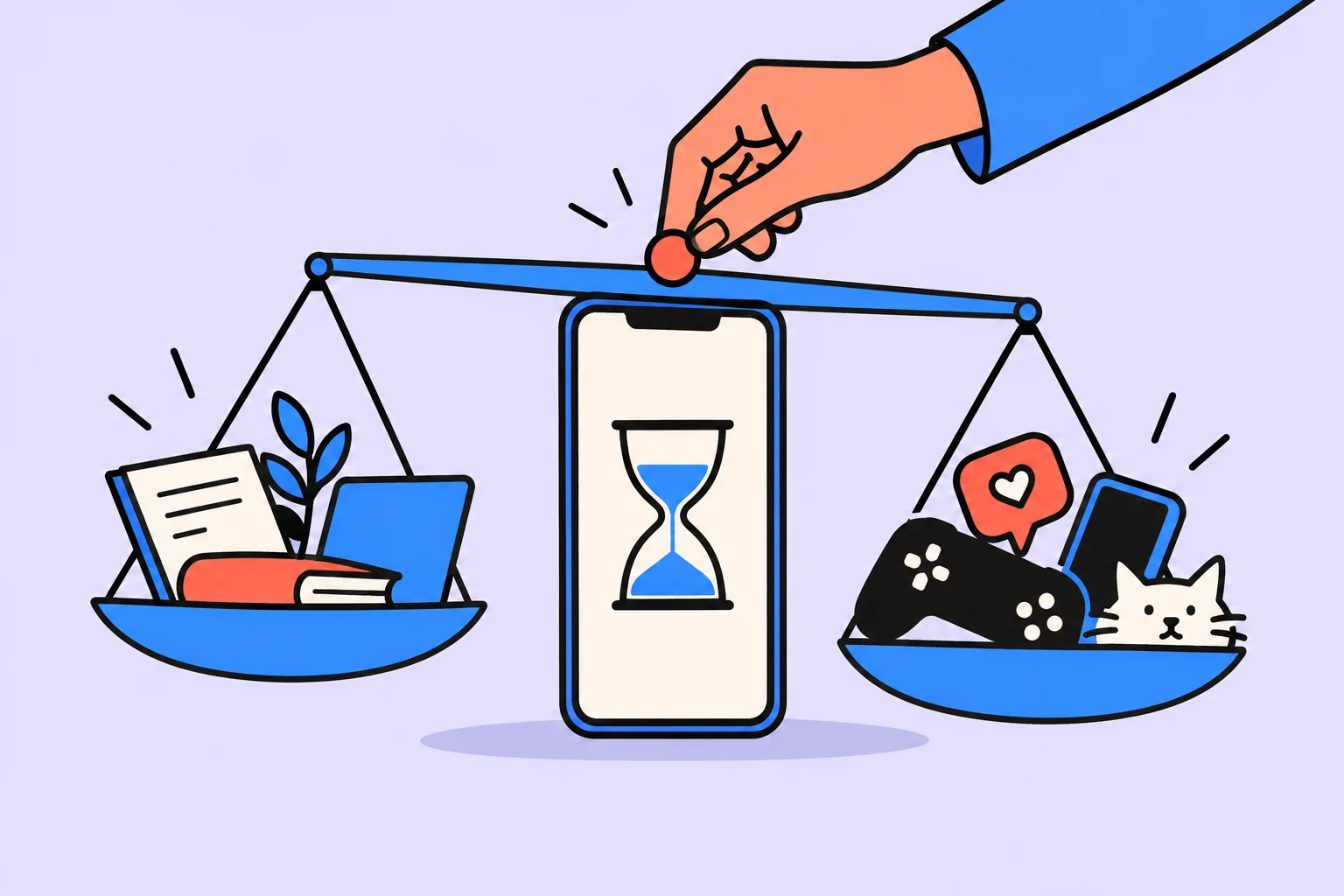
First decide why you are reading the report
Screen time shows how long you use a device and individual apps. It does not explain whether that activity was useful. An hour of navigation in an unfamiliar city, an hour of video calling a loved one, and an hour of random scrolling look like similar numbers but require different decisions. Before opening the report, ask yourself: which phone use do I want to understand or change?
Choose an observable situation: stopping feed scrolling too late, frequently checking messages while preparing a report, or opening videos instead of eating lunch. A useful goal relates to that situation rather than the lowest number of minutes. If you want to stop morning distractions, compare morning app openings. The weekly total may barely change even as the relevant habit changes.
Where to see screen time on iPhone
On iPhone, open Settings, then Screen Time. If tracking is not enabled, find the option to enable App & Website Activity. In the current Apple guide, it is within Screen Time management, schedules, or limits. For the report, tap Daily Average, then choose Day or Week. Button names may differ slightly across iOS versions. Apple’s official guide describes the current path and settings for the selected system version.
Check which device is selected in the report. If sharing across devices is enabled, the figure may include another iPhone, iPad, or Mac using the same account. Record whether you are viewing one phone or a combined report. Without that, ‘it used to be two hours, now it is four’ may reflect changed accounting rather than behavior.
Where to see screen time on Android
On Android, you usually need Digital Wellbeing & parental controls in Settings. Open the usage chart and choose an app: the report shows time and, on supported devices, openings and notifications. Google notes that some features depend on the system version and device. If the section has a different name, search Settings for ‘digital’ or ‘time’.
Do not install a random app merely because the built-in section is not immediately visible. First consult your model manufacturer’s help. An administrator may restrict options on a managed work phone. This article concerns your own settings and does not suggest changing someone else’s restrictions. A report screenshot also contains personal information: check app and website names before sharing it.
Read app figures in context
Compare matching periods: for example, two ordinary workweeks rather than a holiday and a deadline week. First inspect apps with the most time, then those that concern you specifically. A messenger with a short total duration may constantly interrupt work, while a long educational video was planned.
For three noticeable apps, record the purpose of use and the unwanted moment. If one app contains both work and entertainment, an overall limit is a blunt tool. Sometimes disabling unnecessary notifications or removing the app from the first screen is more precise. Do not turn the report into a character assessment: it supports a settings choice rather than proving your discipline.
| Observation | Context | First change |
|---|---|---|
| Messenger opens frequently | Some messages are work-related | Disable notifications for optional chats |
| Videos occupy the evening | One educational video is needed | Choose the video beforehand and stop after it |
| Feed opens before bed | Scrolling is unplanned | Test an evening limit for this app |
Choose one limit and check exceptions
Apple Screen Time offers time limits and schedules; in earlier versions, the schedule may be called Downtime. Android Digital Wellbeing allows an app timer. Choose a specific app and read how the system explains the restriction. Android timers usually reset at midnight; Google’s help clarifies supported feature behavior. Settings for an adult user remain a tool for an agreement with yourself.
Start with a restriction that matches your task. If the app handles work calls, a strict overall limit may interfere. Check necessary contacts, maps, transport, and communication methods before applying a schedule. Preserve the ability to perform necessary actions and change settings through your own permitted controls. This report cannot establish a universally beneficial screen-time allowance for all adults.
Example: free the evening rather than beat the counter
An illustrative example, rather than research: Irina sees 70 minutes of short videos in an evening report. Her goal is to finish watching before preparing for bed. She chooses one service, sets a personal limit of 30 minutes, and decides in advance to charge the phone away from her chair after the signal. An educational video call in another app is outside the experiment.
After a week, Irina checks two facts: how many evenings she stopped on time and whether the restriction interfered with necessary activities. If she continued watching every time, the problem is not necessarily an overly generous limit. Perhaps the stopping point was unclear or the evening lacked an alternative. She can prepare a book or a call with a friend. These numbers illustrate a choice, rather than recommend a standard to the reader.
A short review template
Fill in a note before changing the setting. You do not need to copy every chart: one app, a matching period, and a specific reason are enough. Record exceptions separately so necessary use is not later treated as a lapse. Set the review immediately, or the limit can easily become a setting nobody has reconsidered in a long time.
- What concerns me: app, time of day, specific situation.
- Baseline period: dates and one device or a combined report.
- Change: limit, notifications, or app placement.
- What must remain available: calls, work, travel, learning.
- Review date: which evenings or work blocks I will compare.
- Decision after review: retain, change, or remove the setting.
In Sinqly, you can record a separate task: ‘Review evening phone use on Sunday’. Reading the report itself still requires device settings. If you track the task on paper, the review process stays the same: the product should not replace deciding what matters to you.
Mistakes and the next route
Do not compare only total hours, restrict everything at once, or change the criterion every day. Otherwise, it is unclear which change helped. Another mistake is turning the pause into another endless screen: reducing time in one feed says nothing about where that time went.
Return to the original situation after the chosen period. If necessary work has become calmer, the setting is useful even without a record-low total. Consider wider environmental changes separately: services, notifications, and where the phone stays. Do not expand the first test into a complete reconstruction of your digital life. The report provides a starting point; deciding which use is necessary remains yours.
Sources
Frequently asked questions
Why does screen time differ from how it feels?
Check the selected day, device, and sharing across devices. Then inspect individual apps. The total includes different kinds of use, while the most unpleasant interruptions are often what you remember.
What screen-time limit should I set?
Start with a specific situation and app. Choose a personal trial value, check necessary exceptions, and review it after a week. The overall number does not itself determine whether use is beneficial.
What if Android does not have this section?
Use Settings search and the model manufacturer’s official help. Features and names differ. Do not give third-party apps access to data without understanding why it is required.
Turn an idea into action
Was this helpful?
Rate the article and tell us what was missing. Your feedback goes to the Sinqly team and will not be published on the site.

Monthly goals: choose results that fit your resources
Choose a few achievable results, check time and dependencies, and define month-end criteria and review conditions without chasing a target number of goals.
Digital detox: a complete guide
A complete guide to digital detox. Signs of information overload, dopamine dependence, weekend and week-long plans, and a family detox.

How to enter flow: prepare the task, challenge, and feedback
Conditions for focused work without promising a special state. Set up one session with a clear result, manageable challenge, and checks along the way.