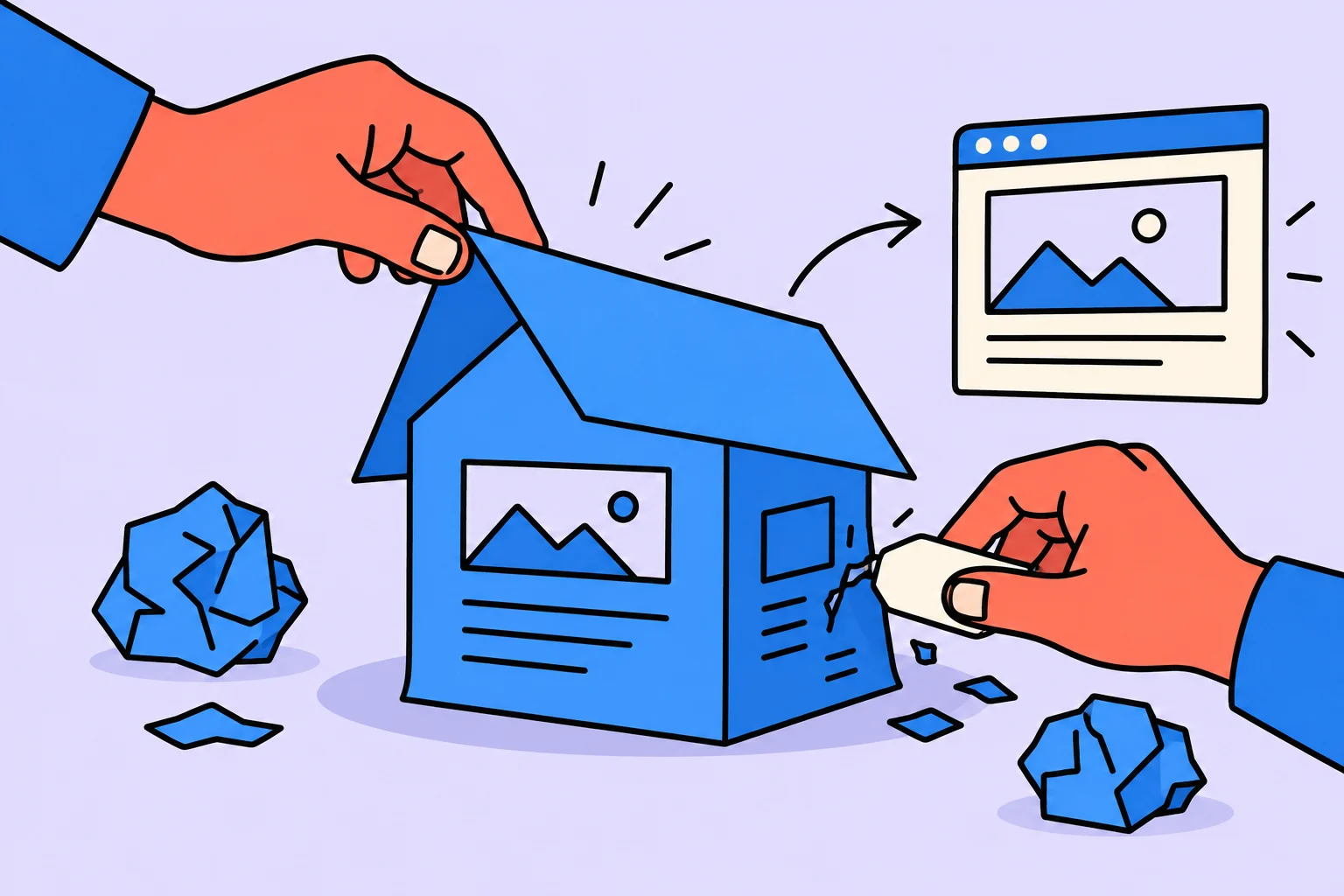
First define the result
Create a website with AI in stages: describe the task, obtain a first page version, correct the content, and check it in a browser. Generation alone does not mean links lead to the right place, text is true, or the page works well on a phone.
This guide’s first result is a local one-page demonstration: an index.html file opening in your browser. It has no public address, inquiry form, or payment yet. After checking it, choose publication separately. The educational service is used only for practice; commercial promises are not supplied.
| Result | What you receive | What still needs checking |
|---|---|---|
| A page image | A visual idea | This is not yet an editable interface or working website |
| An editable layout | Structure and elements in a design editor | States, responsiveness, and later implementation |
| A browser page | Working elements and text | Links, errors, accessibility, and publication terms |
The official Claude Code overview describes coding and development tasks. Figma describes generation of editable interface drafts. These capabilities concern different outputs: the appropriate tool depends on whether you need a layout or working page. Interfaces and feature availability change; check them in your account.
Choose a route by skills and result
| Route | Suitable when | What is needed |
|---|---|---|
| One HTML file — our example | You need a simple local page and are willing to edit text | A text editor, browser, and checkable AI answer |
| Website builder | You want to edit blocks without coding | An account and checks of current terms, address, and publication; this route is not performed here |
| Design editor | You need layout approval before implementation | Interface-editing skills; the layout then needs implementation |
| Development environment and coding agent | You need app logic and multiple files | Project startup, change review, and tests; unnecessary complexity for the first example |
Our route uses one self-contained HTML file. MDN demonstrates creating index.html and opening it in a browser. This lets you check a small page without installing a development environment. Public hosting and server features are outside this scope.
The brief: visitor, offer, and one action
Start with four questions: who visits the page, what problem they solve, what exactly you offer, and what action you want. If answers are vague, AI will fill gaps with plausible guesses. Leaving a field empty is better than publishing invented experience or a review.
| Field | What to give AI |
|---|---|
| Visitor | A self-employed professional with several clients who loses track of agreements |
| Offer | One consultation; the owner supplies actual contents and price |
| Action | Follow a checked contact link |
| Materials | Your own service text, contacts, and images you have rights to use |
| Constraints | Do not invent cases, reviews, figures, or guarantees; do not collect data |
| Verifiable result | One page: opening section, consultation contents, process, questions, contacts |
This is the author’s educational example rather than the result of a completed generator test. Timing, price, and outcome promises are deliberately absent: the service owner must confirm them.
A request that bounds the result
AI assignment: ‘From the educational brief below, create one complete index.html file. Put all CSS inside it. Load no external libraries, fonts, images, or scripts. Add a service heading, result description, stages, and a “How to get in touch” link leading to a block with id="contact" on the same page. Do not add forms, payments, reviews, or unconfirmed figures. Mark missing real terms as “needs filling in”. Return the entire HTML document, including its doctype, document head, and all page contents, with no omissions. After the code, list what to check.’ Add your brief after the assignment.
This request does not guarantee a good page. It helps reveal differences between the assignment and result, such as a broken form replacing a simple link or invented ‘hundreds of satisfied clients’. Fix these differences before discussing button color.
- First agree on block order and heading meanings.
- Replace all placeholders with your confirmed text.
- Check that the button leads to the correct address and has a clear name.
- Ask for explanations of unfamiliar dependencies and startup steps; do not publish code you cannot check.
From an AI answer to a browser page
For the educational run, paste this complete brief into the request: ‘Heading: Discuss work tasks in a consultation. Description: discuss a task list and a next step. Stages: prepare a task list; discuss difficulties; record the next step. Contact block: insert your confirmed contact method before publishing. Actual price and timing are unknown; do not add them. This is an educational example rather than a real service.’ Do not provide client or personal data.
On receiving the answer, check completeness: you need one index.html file rather than fragments, a link to someone else’s project, or instructions to install dependencies. If incomplete, ask: ‘Return the entire file without omissions or external connections.’ Copy only file contents. For comparison, open ‘Educational HTML example’ in the sources at the end. It is the author’s independent example rather than a promise that a particular generator will produce the same result.
Create a folder on your computer, such as site-demo. Open a plain-text editor; if it supports formatted text, choose plain text. Copy only HTML, without AI explanations or code-fence markers. Save index.html in that folder using UTF-8. Check that the filename does not end in .txt.
Open the saved index.html in a browser by dragging it into the window or using Open File. The address bar will show a local file:// address, which is normal for this example. Expected result: heading, description, stages, and a contact block. The ‘How to get in touch’ link should move to the contacts.
| Symptom | Check | Correction |
|---|---|---|
| You see code rather than a page | The full filename and opening application | Remove .txt, save HTML, and open it in a browser |
| Russian characters are corrupted | File encoding and meta charset | Save UTF-8 and retain meta charset="utf-8" |
| The link does not go to contacts | The link’s href and target block’s id | The link should contain #contact and the heading id="contact" |
| Nothing changes after a correction | Whether the file was saved and the correct file is open | Save and refresh the browser tab |
Control exercise: in your copy, replace #contact with #contacts. Clicking changes the address fragment, but no element has that id. Compare the link’s href with the heading’s id: they must match without # in the id. Restore #contact, save, and check again. If contacts are already visible, noticeable scrolling may not occur; that is not an error. Then narrow the window, select the link with Tab, and press Enter to check keyboard navigation.
How to refine the first version
Do not ask ‘make it prettier’ for ten reasons at once. Name a specific problem: the opening does not explain the service, cards repeat one point, or a long heading covers the button. Change one coherent area and compare it with the previous version.
For example: ‘Remove unconfirmed promises from the opening. Explain the service in the heading and who it serves in the subheading. The button must lead to the specified link. Leave other blocks for now.’ Before another iteration, save the working version using your editor or development environment’s method.
When creating a website through vibe coding, the main work after the command is checking the result. Natural-language requests may change more code than the assistant’s answer suggests. Inspect changed parts, repeat visitor actions, and restore a working version after breakage.
Browser checks before publication
| Check | How to perform it | What counts as a problem |
|---|---|---|
| Content | Read without the brief and verify facts separately | Unclear offer, invented experience, remaining placeholder |
| Links | Click every button and link | Someone else’s address, an error, or an empty jump |
| Phone | Open the page on a narrow screen | Horizontal scrolling, clipped text, overly cramped elements |
| Keyboard | Navigate actions with Tab | Invisible focus or an inaccessible button |
| Images | Check loading and captions | Missing rights, a random image, or meaning available only inside an image |
| Publication | Clarify the address and terms of the chosen hosting method | Unclear limits, closed access, or dependence on someone else’s account |
This sheet helps check a small prototype; it does not replace full security verification of a complex app. If adding payments, accounts, or client data, make that a separate task with an appropriate specialist.
Before working, determine what the tool’s free mode includes: creation, editing, hosting, your own domain, or file transfer. Obtaining a first version does not mean every subsequent action is free.
What counts as a finished result
Our example is ready for discussion when a visitor understands the service, all information is confirmed, the contact link works, and the page is readable on a phone. If any item fails, the next task should describe a specific correction.
Collect corrections in a task list: ‘replace price placeholder’, ‘check contact link’, ‘shorten heading on phone’. You can use the existing Sinqly task manager for this list; website generation happens in your chosen tool.
Finish each iteration with a saved version and a short note on what changed and what remains to check. The next AI request then continues understandable work rather than restarting a random redesign.
Sources
Frequently asked questions
Can I create a website with AI without programming skills?
A first small prototype is possible in a tool with a clear interface, but the result still needs checking. Payments, accounts, and complex logic require additional technical work.
How does a layout differ from a website?
A layout describes appearance and structure. A working website opens in a browser and performs actions. Generating a layout does not itself implement forms or other features.
Can everything be free?
That depends on the chosen tool’s current terms. Check creation, export, hosting, and domain separately; a free first version does not guarantee free publication.
Turn an idea into action
Was this helpful?
Rate the article and tell us what was missing. Your feedback goes to the Sinqly team and will not be published on the site.
How to create an app with AI: an educational MVP from scenario to testing
Build a specification for a personal request log: screen, data, browser storage, errors, and testable acceptance criteria for a small MVP.
How to create an AI agent: a first scenario, tools, and checks
Build a simple AI agent to review a request: prepare a reference catalog, restrict actions, and check replies against five educational inquiries.
Vibe coding: what it is and how to make a first useful prototype
Explore vibe coding through a service-cost calculator: from an AI assignment to checking the formula, errors, and mobile screen.