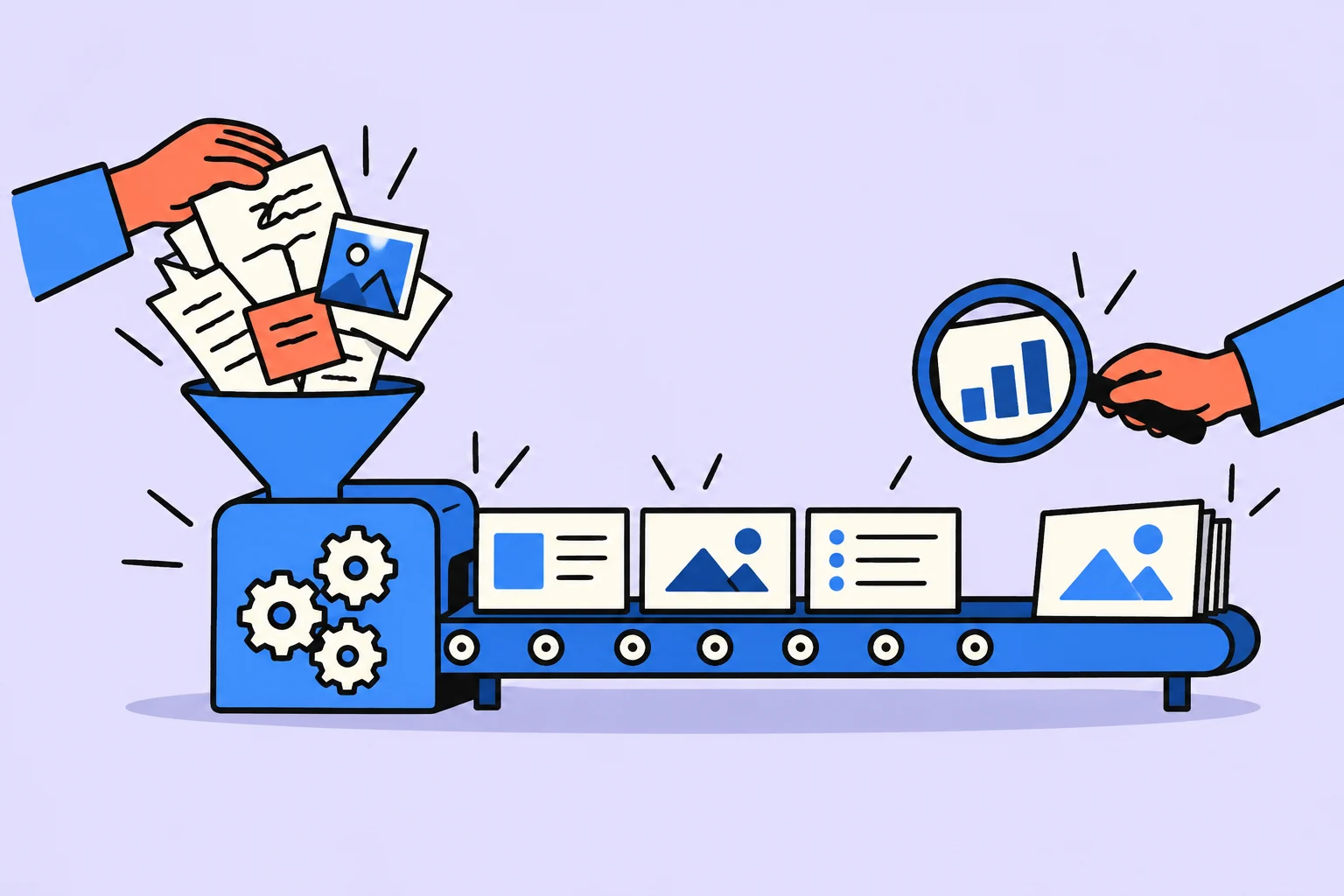
Start with the decision the reader should make
To create a presentation with AI, first define the audience and desired decision, then provide source materials, agree on structure, and check the slide draft. Attractive design does not fix an unclear offer or unsupported figures.
A first-meeting presentation differs from a document read independently. In the former, you explain details aloud. In the latter, the file itself needs context, captions, and a clear next step. Choose the format before generation.
We will examine an educational example: a freelancer offers a small project to improve a service page. All examples below are the author’s rather than outputs of a verified AI run. We will not invent clients, revenue, or growth percentages.
Choose what to assign to AI
| Task | Required result | How to check |
|---|---|---|
| Meaning and structure | Slide outline and arguments | Each slide helps reach the intended decision |
| Text and data | Headings, captions, source-number table | Facts match materials; calculations are reproducible |
| Slide assembly | An editable presentation in the chosen tool | Text can be corrected; the required file can be opened and sent |
Microsoft describes creating a PowerPoint presentation with Copilot from a prompt or source file. Access depends on subscription and organization settings. This is an example of slide-assembly capability rather than a promise of availability in every account.
If you lack a suitable slide generator, use AI for the outline and text, then assemble slides in a familiar editor. The important result at this stage is usable material. The label ‘AI for presentations’ does not explain whether a service returns a file or text only.
Collect the source-material package
Provide a short service description, recipient, work scope, limitations, confirmed examples, and next-step conditions. Separate facts from hypotheses. ‘We suspect visitors struggle to find contacts’ differs from a confirmed data observation.
- What you offer: a specific result, such as a revised opening section and contact block.
- What is included and excluded: pages, revisions, approvals, client materials.
- Why it might help: observations with sources rather than promises of sales growth.
- How to decide: what the reader should send or approve afterward.
If calculations are needed, prepare a table with clear columns and one record per row. OpenAI states that ChatGPT can analyze uploaded data and create tables or charts; code, outputs, and assumptions need checking. This does not confirm any particular calculation in your presentation.
A complete source for the educational example
Create a text document called ‘Educational project brief’. Its exercise contents: ‘Offer: review the service page’s opening section and contact block. Inputs: offer text and current-page link supplied by the client. Output: recommendations and draft text for two blocks. Publication, development, and advertising campaigns are excluded. Agree on price and timing before starting. Next step: send offer text and the page link. Hypothesis: visitors may not understand how to get in touch; check on the page itself.’ This is an exercise condition rather than a description of an actual delivered service.
| Information type | What the educational brief says | What the slide may say |
|---|---|---|
| Exercise condition | Recommendations and a draft of two blocks | ‘Output: recommendations and draft opening and contact text’ |
| Hypothesis | Visitors may not understand how to get in touch | ‘We will check whether the page makes the next step visible’ |
| Unknown | Price and timing are not agreed | ‘We will agree on cost and timing before starting’; do not insert a number |
Ask AI for both slide text and a reference to the specific source paragraph in notes. An external fact needs a real publication or source table; linking to the AI answer itself does not substantiate a claim.
A seven-slide service-proposal outline
| Slide | Reader’s question | Contents |
|---|---|---|
| 1. Offer | What is being offered? | A specific project result and whom it serves |
| 2. Observation | Why discuss it? | A supported problem or explicitly labeled hypothesis |
| 3. Solution | What will change? | Proposed actions without guaranteed commercial impact |
| 4. Scope | What is included? | Outputs, limitations, and client materials |
| 5. Process | How will we work? | Stages and approval points |
| 6. Terms | What is needed to start? | Confirmed timing, price, and dependencies; do not invent |
| 7. Next step | What should I do now? | One clear action and a working contact |
You need not retain seven slides. Combine two answering the same question. Add a separate slide when terms cannot otherwise be understood. Presentation length should follow the task rather than a random number in the prompt.
Complete text for three slides from the educational brief
| Slide | Heading and text | Visualization and basis |
|---|---|---|
| 1 | ‘Make the offer and contact clearer’. We will review the opening and contact block. Output: recommendations and draft text. | Two rectangles: ‘Opening section’ and ‘Contacts’. Basis: brief sentences 1 and 3. |
| 2 | ‘Check the path to the next step’. Hypothesis: visitors may not understand how to get in touch. We will check it against the current page. | The path ‘read offer → find contact’. Basis: the brief’s final sentence; the hypothesis is explicit. |
| 3 | ‘We need page materials to start’. Send offer text and a link. Price and timing are agreed before starting. Publication and advertising are excluded. | List of inputs and boundaries. Basis: brief sentences 2, 4, 5, and 6. |
These three slides can already be assembled in an editor. They promise no sales growth, contain no invented cases, and conceal no unknown conditions. Add other slides only if the recipient actually needs process details, expanded scope, and a separate next step.
A request for the first draft
Example: ‘Prepare a service-proposal presentation outline for [audience]. After viewing, the reader should [decision]. Use only the materials below. Do not invent clients, reviews, figures, or guarantees. Mark hypotheses and missing information separately. For each slide, provide a one-idea heading, short text, suggested visualization, and factual source reference. Show the outline first; do not design yet.’ Then insert your materials.
Review the outline as a recipient: are the offer, boundaries, and next step clear? If not, fix arguments before generating attractive slides. After approving structure, move it to the chosen editor or slide-assembly tool.
In PowerPoint with Copilot available, use the presentation-creation workflow in official help and check the draft. Do not promise yourself a particular export result beforehand: clarify your version and account capabilities first.
Assemble an editable PowerPoint file
The route below assumes PowerPoint is already available to you; it does not assume a free subscription or Copilot access. Official Microsoft help describes presentation creation, adding slides, entering text, and saving. AI prepares content here; the editor turns it into a file.
Create a blank presentation. On slide one, enter the heading and text from the first row of the complete example. Add two more slides and transfer rows 2 and 3. Use a title-and-content layout. If a field is missing, insert a text box. Move ‘basis’ references into notes or a separate working document to retain their connection to the brief.
Check editability: change a word in slide two’s heading, then restore it. If only one image is available instead of text, you have a slide image rather than the required editable material. Check text size in presentation mode.
Choose ‘File → Save As’, select the educational project folder, name the file predlozhenie-demo.pptx, and choose PowerPoint Presentation (.pptx) if available in your version. Microsoft documents saving in .pptx. Close the file, open the saved copy from its folder, and repeat text editing and slide viewing. This checks the final file itself; the article’s author did not perform this action, which remains an instruction for the reader.
In another version or online editor, menu names and downloading may differ. Do not buy access for this example without checking. Alternatively, save the prepared text and use an editor already available that supplies an editable file. This article promises no free generation-and-export route.
How to check figures, charts, and wording
For each number, ask where it came from, which period it covers, and its units. If AI adds an estimate absent from materials, remove it or return to the original source. Do not turn a hypothesis into a fact for a persuasive slide.
| Object | What to check | Example correction |
|---|---|---|
| Number | Source, period, units, and calculation | Label the period or remove an unsupported estimate |
| Chart | Axis scales, labels, and source table | Fix an axis creating a false impression of growth |
| Promise | Whether it can be substantiated and delivered | Replace ‘increase sales’ with a specific work scope |
| Image | Usage rights and relevance to meaning | Replace a random illustration with a process diagram |
| Text | One idea per slide and readability | Move details to notes or a separate document |
| File | Opening, fonts, links, and page order | Open the final version and check without editorial notes |
Keep the source-data table separate from its chart. You can then reproduce the calculation and explain it to the recipient. A persuasive image without verifiable support only complicates discussion.
Free mode and sending the result
Before starting, check what ‘free’ means in the chosen service: generation limits, watermarks, editing, downloading, and recipient file opening. Terms change; free entry does not prove free export.
Agree on the delivery format with the recipient. After saving, open the final file or link rather than only the editor project. Check access, slide order, and links. A recipient receiving a separate file should not need your editing permissions.
Turn remaining checks into tasks: ‘confirm timing’, ‘verify source figures’, ‘open the final file’. The existing Sinqly task manager suits this list; create and check the presentation in your chosen tools.
A finished result lets the recipient understand the offer and make the intended decision. Generation speed alone does not establish that.
Sources
Frequently asked questions
Can AI create a presentation from my materials?
Some tools support slides from a prompt or file; Copilot for PowerPoint help describes this scenario. Check availability in your account. Every draft needs editing and checking.
What if the service returns text only?
Use it for structure, headings, and explanations, then assemble slides in a familiar editor. Obtaining text and obtaining an editable presentation are different results.
How do I check free export?
Check the specific service’s current restrictions before starting: download, format, watermarks, and link access. This article does not promise free export in a particular format.
Turn an idea into action
Was this helpful?
Rate the article and tell us what was missing. Your feedback goes to the Sinqly team and will not be published on the site.

An AI-assisted advertising banner: concept, editable layout and checks
Build a banner around one message: brief, visual-concept prompt, separate text layers and a readability check before placement.
A business plan with AI: inputs, calculations, and assumption checks
Prepare a business plan with AI: a complete educational service model, break-even calculation, scenarios, and cash balances. Assumptions are separated from verified data.
How to write a post with AI: from facts to publication
Define your audience, give AI verified facts, and produce a post with one clear action. A worked example, complete prompt, and editorial checks.